Zoho Integration
Complete Guide to Seamless Zoho CRM Integration with Finzy
Steps to Connect Your Zoho Account with Finzy:
- Log in to your Finzy account.
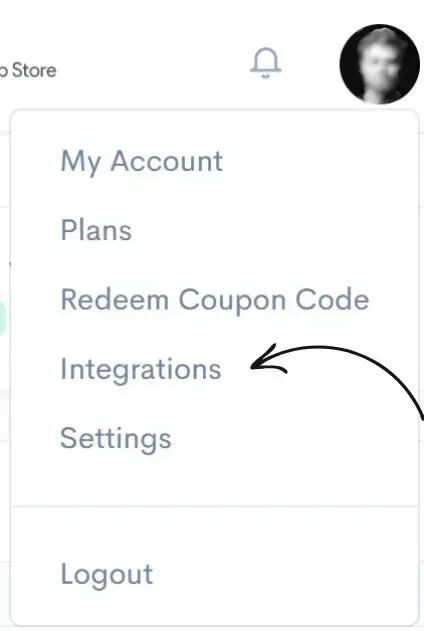
- Open the Integrations area from your account settings.
- Select Zoho CRM and review the available connection settings.
- Click Connect Zoho and sign in to your Zoho account.
- Authorize the connection and confirm the Connected status inside Finzy.
Once connected, Finzy can create records inside Zoho CRM according to the sync settings you choose, helping your team keep outreach data organized without manual copy-paste.
On-Screen Guide
This walkthrough shows how to connect Finzy with Zoho CRM and manage what gets created after sync. Based on your selected settings, Finzy can create the Zoho CRM records your workflow needs.
Step-by-Step Guide to Integrate Finzy with Zoho CRM
1. Log in to your Finzy account and open the Integrations section.
2. Open the Zoho CRM integration settings to review the connection details.
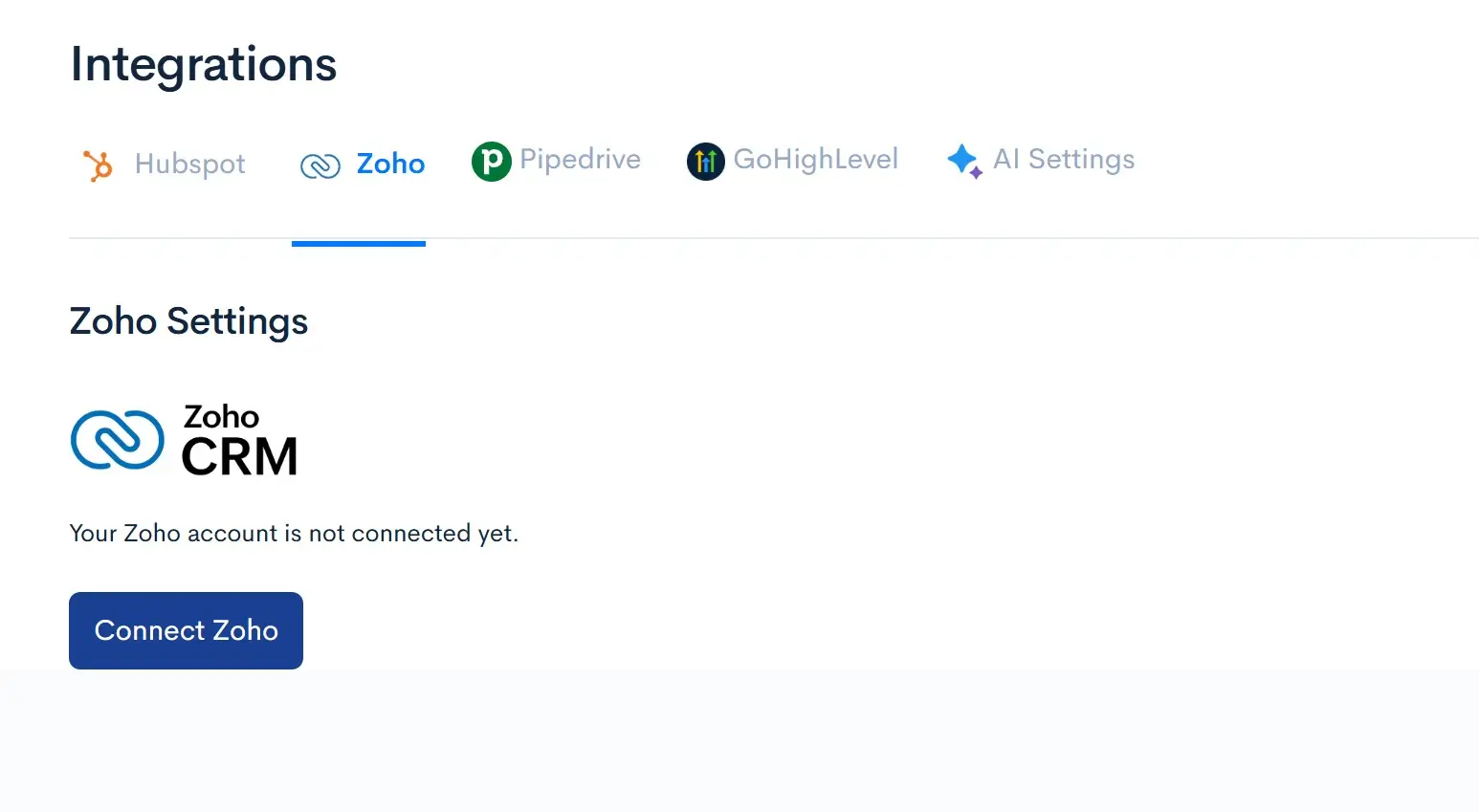
3. Click the Connect Zoho button to start authentication.
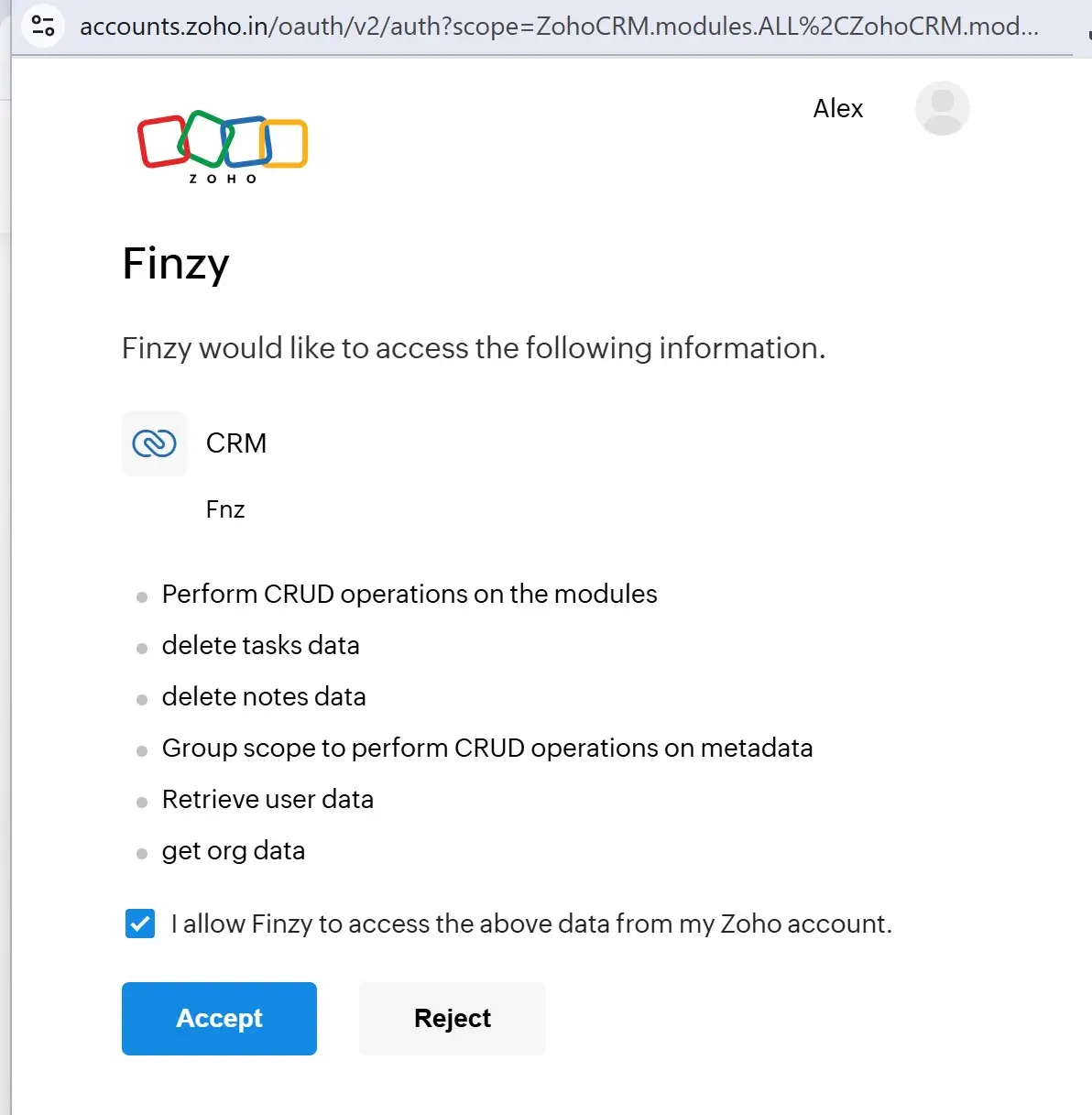
4. Sign in to Zoho, approve the required permissions, and confirm the Connected status in Finzy.
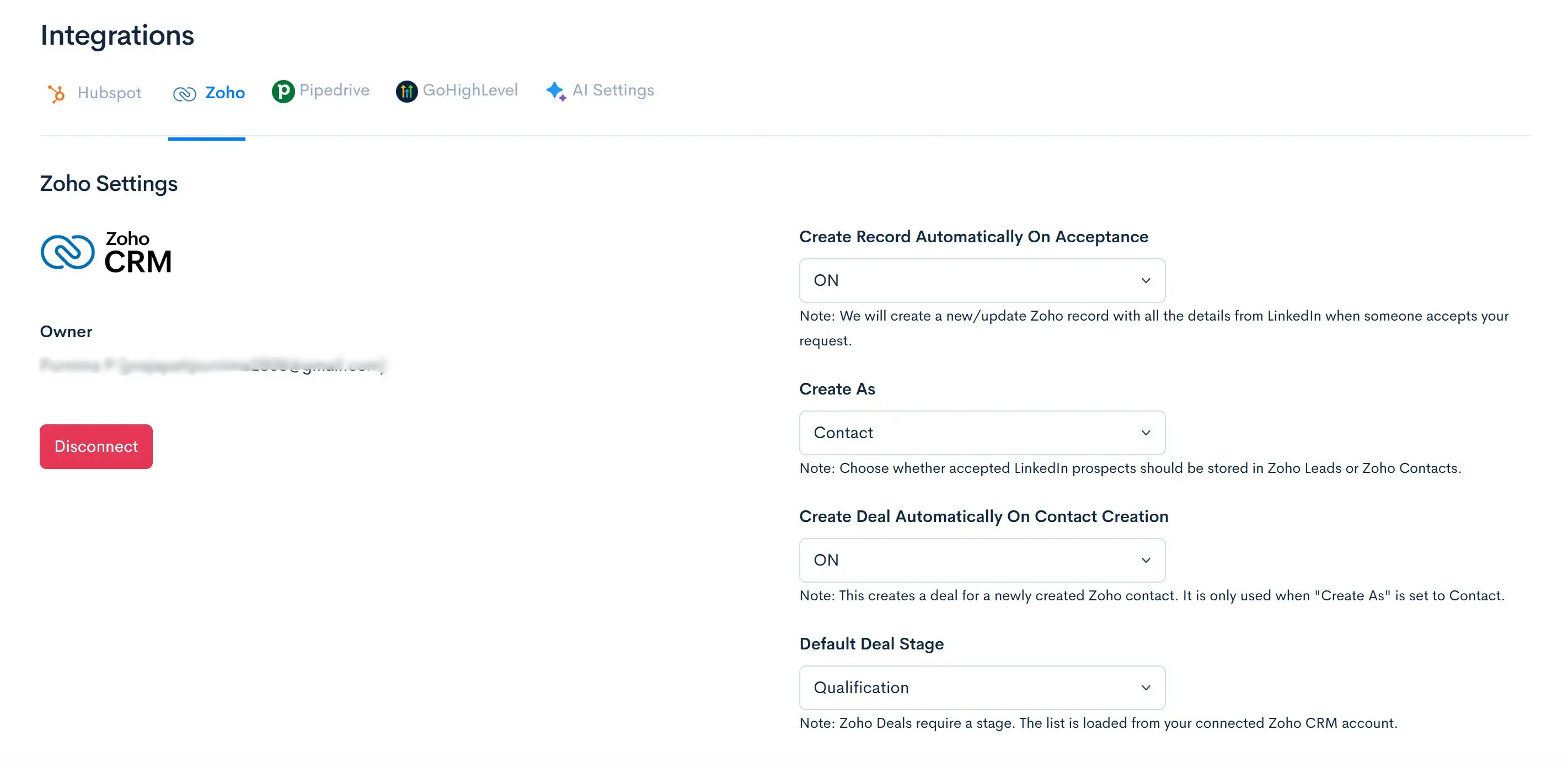
5. Choose what Zoho CRM records should be created based on your integration settings.
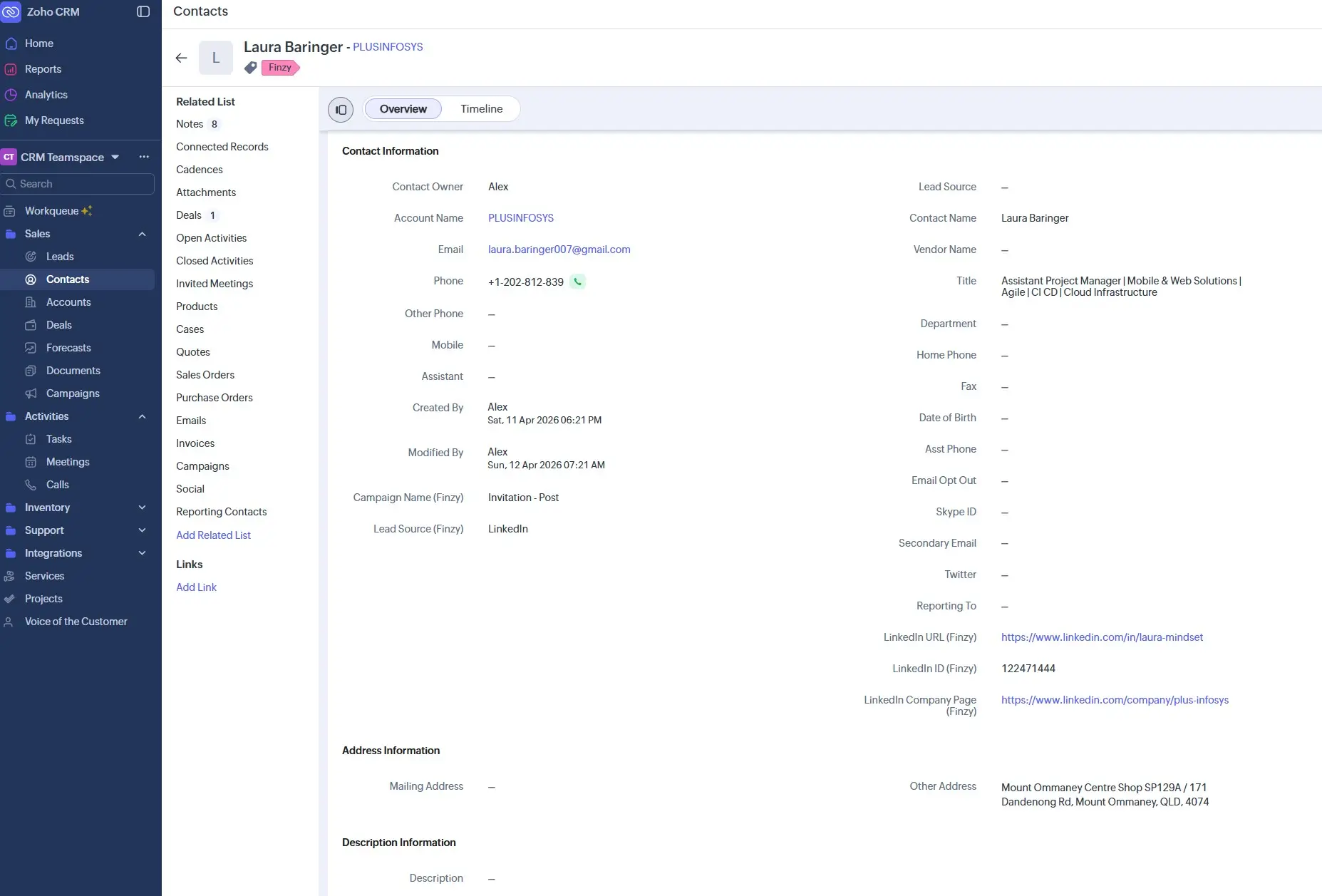
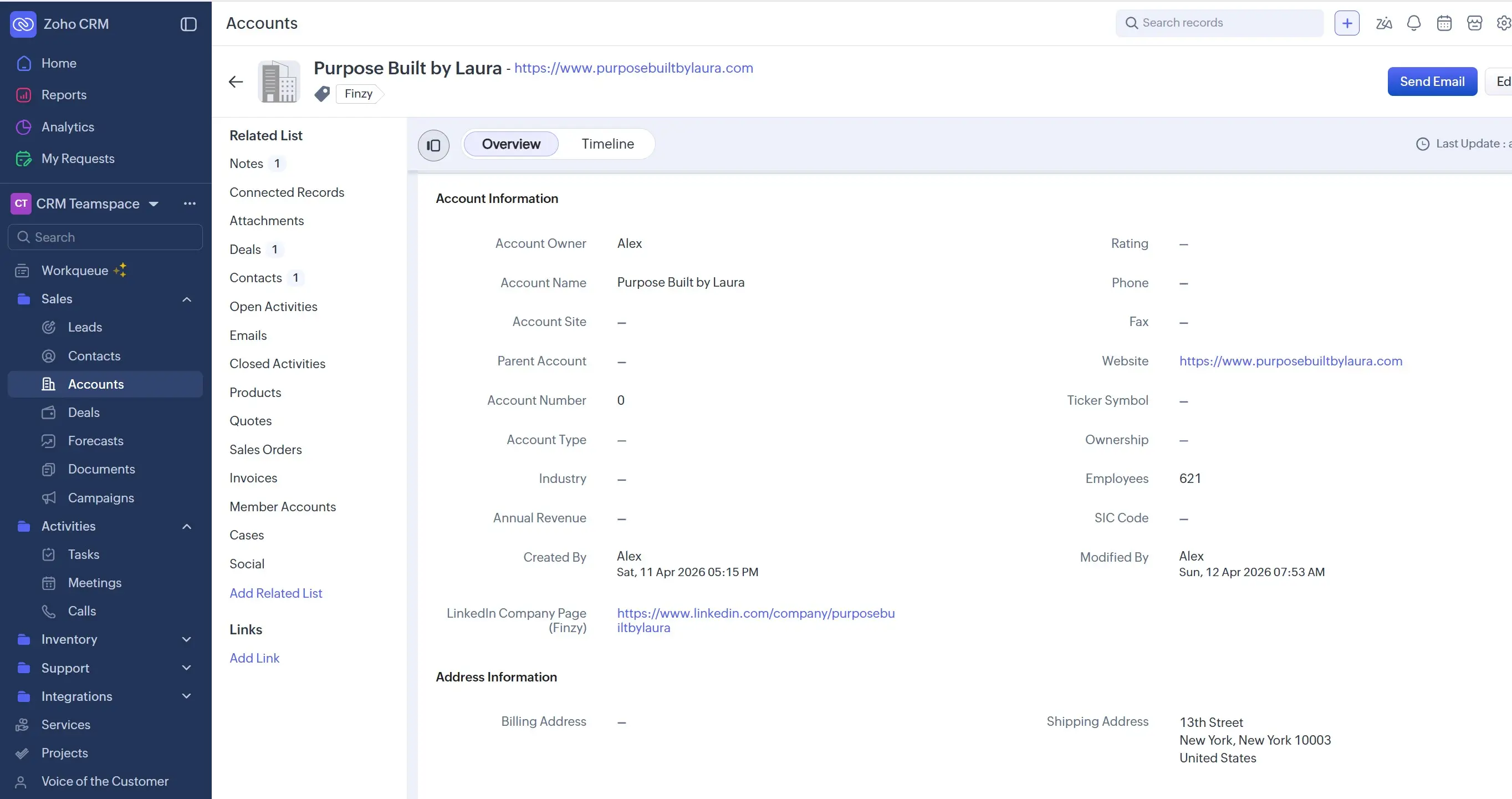
After authorization, you can control what gets created in Zoho CRM. Depending on the settings you select in Finzy, the synced data can be added as Contact, Account, and Deal records for a more structured sales workflow.
Contact Record
Account Record
Deal Record
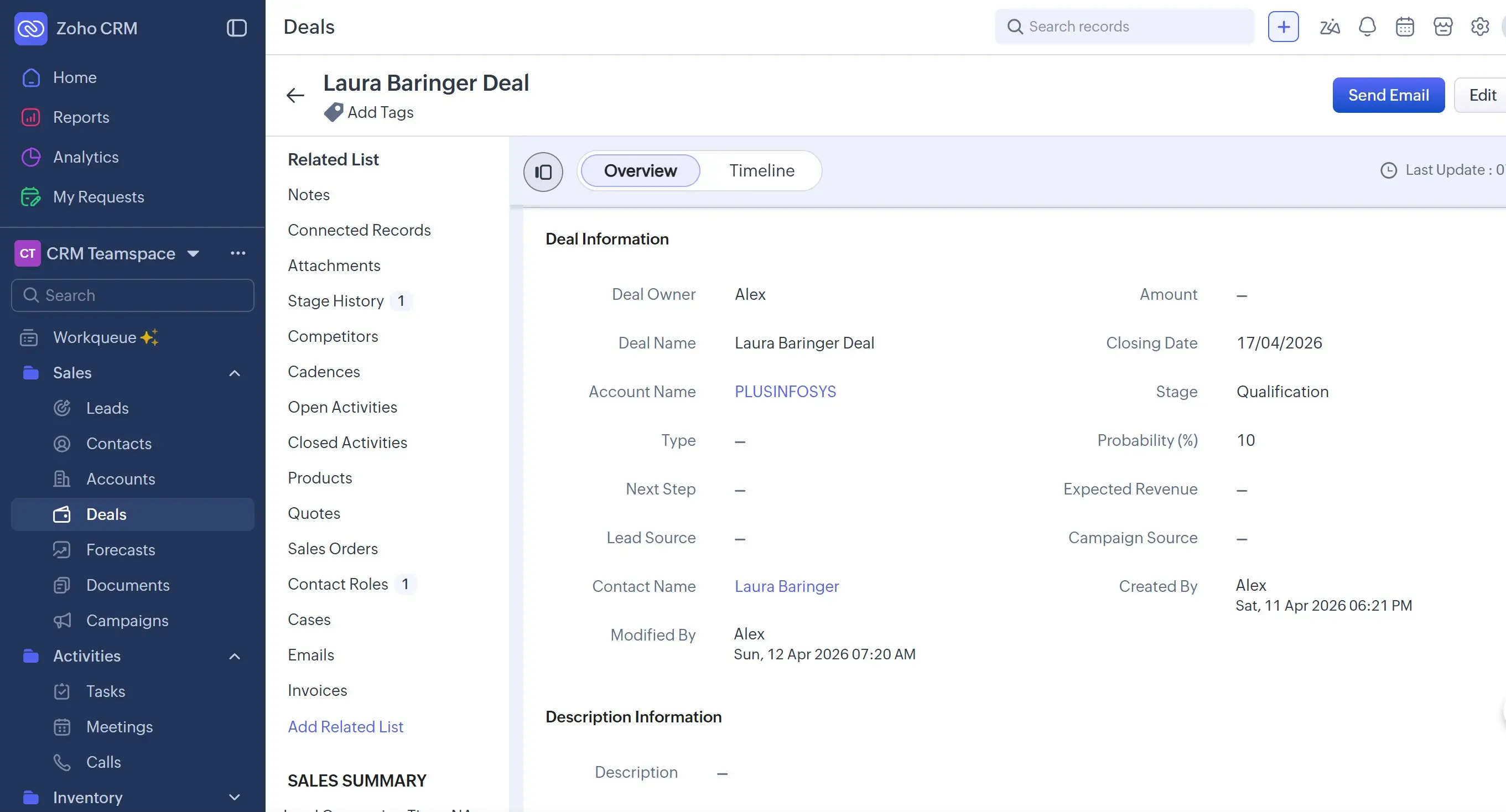
This settings-based sync gives your team more flexibility. Instead of sending every prospect into a single module, you can organize the data in Zoho CRM according to how your pipeline is structured.
Integrating Zoho CRM with Finzy helps you turn LinkedIn outreach into a cleaner, more manageable sales workflow.
Here is why the integration adds value:
1. Settings-Based Record Creation
Benefit: Finzy can create Zoho CRM records according to the sync settings you choose.
Impact: Your CRM structure stays aligned with your team process instead of forcing every synced prospect into the same format.
2. Centralized Prospect Visibility
Benefit: Outreach activity and synced records live inside the CRM your team already uses.
Impact: Sales and operations can review prospect status from one place instead of jumping between tools.
3. Faster Follow-Ups
Benefit: New synced records can move directly into your Zoho workflow as soon as prospects engage.
Impact: Your team can respond while interest is still high and improve conversion speed.
4. Better Team Handoffs
Benefit: Prospect details can be passed from outreach to sales as Contact, Account, or Deal records.
Impact: Reps get the context they need without chasing scattered notes.
5. Cleaner Reporting
Benefit: Zoho CRM can be used to analyze the results of outreach campaigns managed in Finzy.
Impact: You get clearer insight into lead flow, team activity, and campaign quality.
6. Less Manual Work
Benefit: The integration removes repetitive steps from your daily process.
Impact: Your team spends more time on conversations and less time updating records.
7. More Reliable Lead Management
Benefit: Records created from Finzy activity enter Zoho CRM in a consistent way.
Impact: It becomes easier to segment prospects, prioritize follow-ups, and keep the funnel organized.
Example Use Case:
Imagine your team sends 200 LinkedIn connection requests through Finzy. As prospects accept, their details can be synced into Zoho CRM based on your selected setup, for example as Contact records with related Account and Deal entries. That gives sales reps the structure they need to qualify leads, assign follow-up actions, and move warm opportunities forward without re-entering data manually.
Conclusion
With Zoho CRM connected to Finzy, your outreach and record creation settings stay in sync. That means less admin work, faster follow-up, and a more reliable process for turning accepted connections into structured CRM data.
Once the integration is active, your team can focus more on conversations and pipeline movement instead of moving data from one tool to another.
Troubleshooting Tips:
- Double-check that you are signing in with the correct Zoho CRM account.
- Make sure you approve the permissions requested during the Zoho authorization step.
- Review your Zoho sync settings if the wrong record type is being created after connection.
- If the connection does not appear immediately, refresh the page and check whether the status changes to Connected.
- If you still need help, contact the Finzy support team from the website support section.